
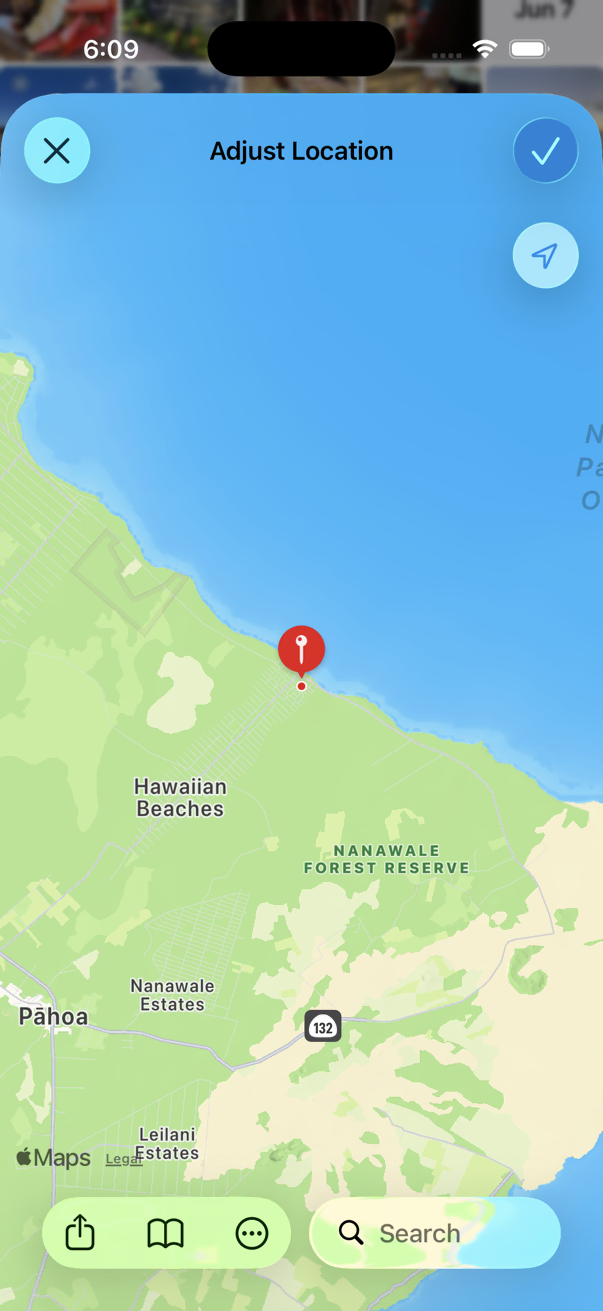
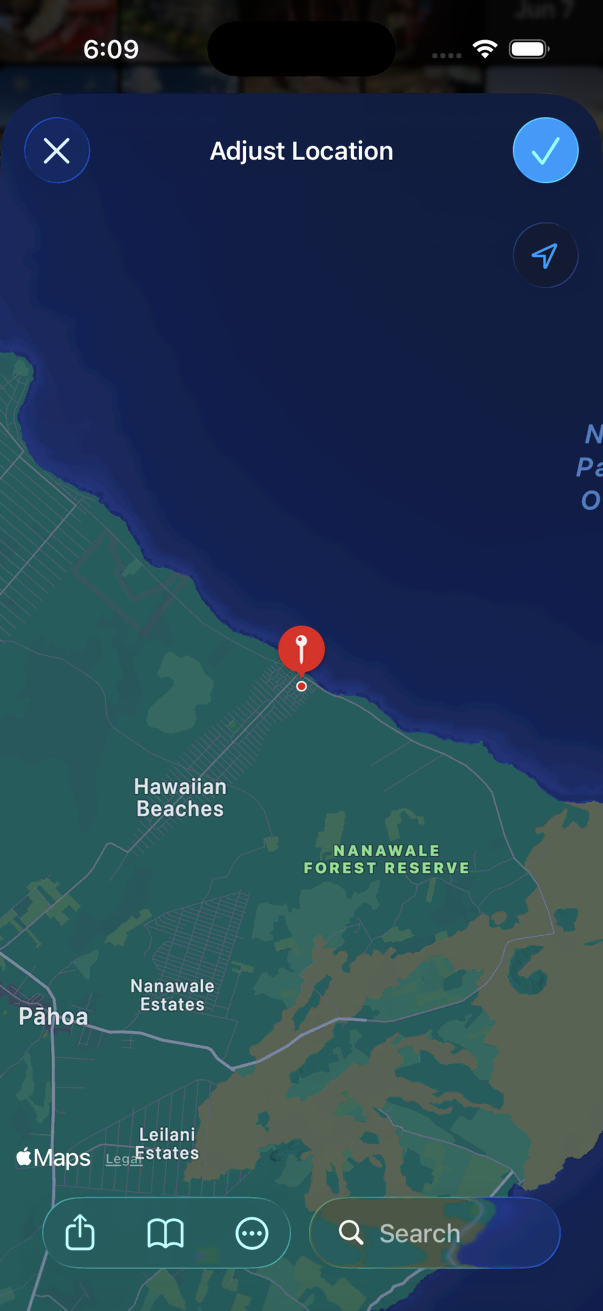
Adjust Location
PRO Free: single item only; up to 3 location bookmarks.
Change or set the location of one or more photos.
- Open a photo in the viewer, or select photos in the thumbnails screen.
- Tap the on the bottom toolbar.
- Tap Adjust Location.
- Adjust location on the map, or choose a saved Location Bookmark.
- Tap Adjust.
When Update Metadata is on, for image formats that support metadata, HashPhotos writes the new location into the image file metadata, saves a new image, and deletes the original.
Copy and Paste Location
Reuse a location from one photo on others without re-picking the map:
- Open a photo that already has the correct location in the viewer.
- Open the Information Summary panel.
- On the map, tap the … button and choose Copy Location.
- Open or select the photo(s) that need the same place, then open Adjust Location.
- On the map, tap the … button and choose Paste, check the map, and tap Adjust.
Location Bookmarks
Save frequently used locations as bookmarks when adjusting location. Bookmarks appear in the location picker so you can apply them quickly to other photos.