
Splice Image
Requires iOS 17 or later.
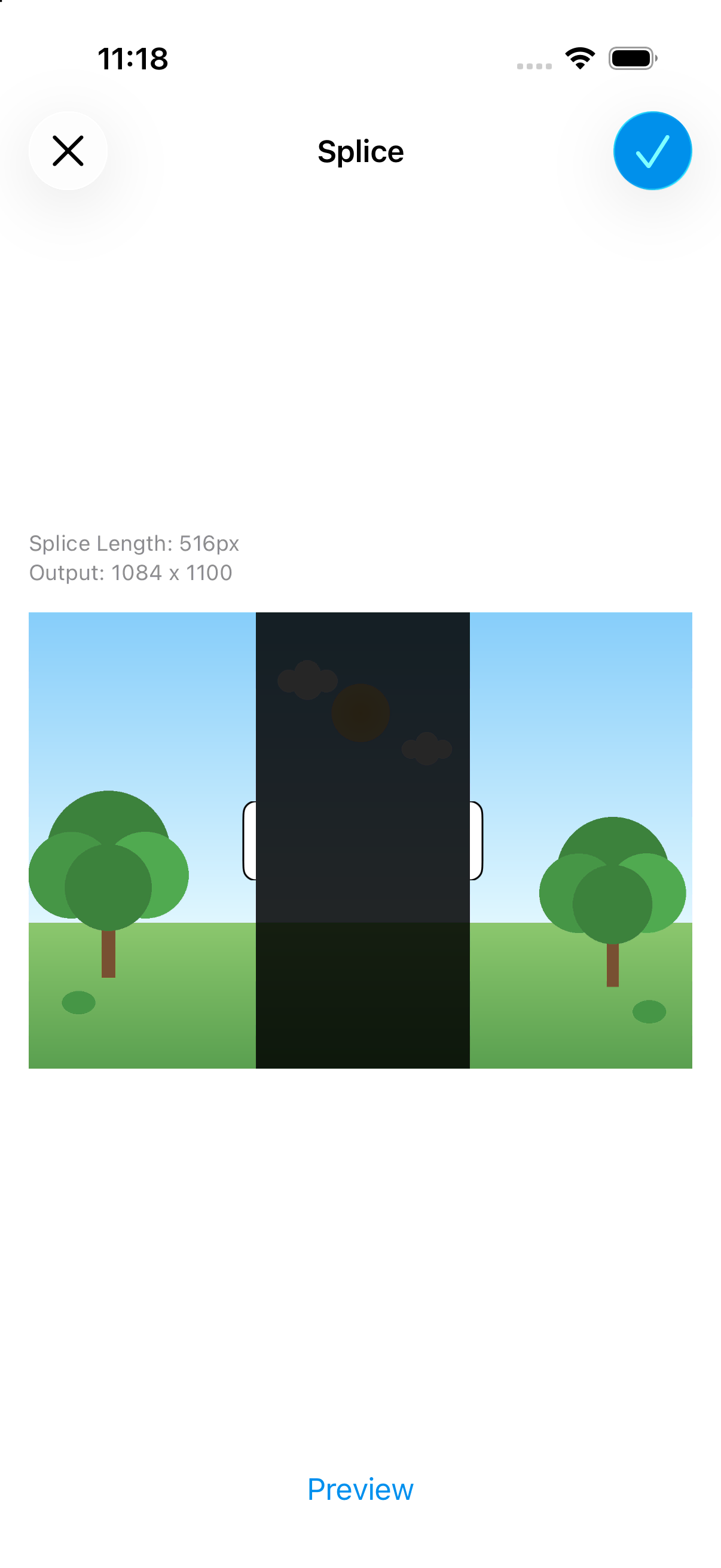
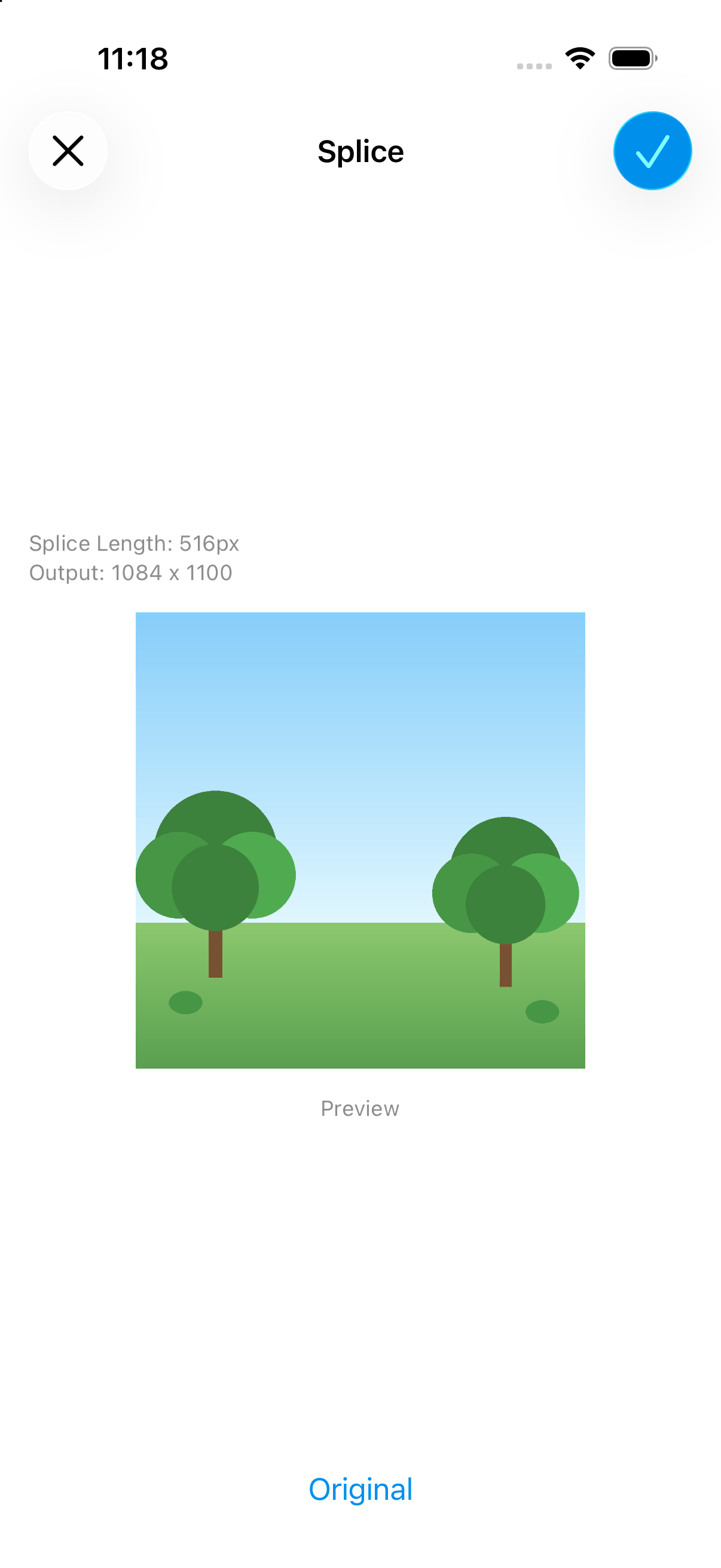
Remove a section from an image and join the remaining parts into a single image. This is useful for cutting out an unwanted area in the middle of a photo.
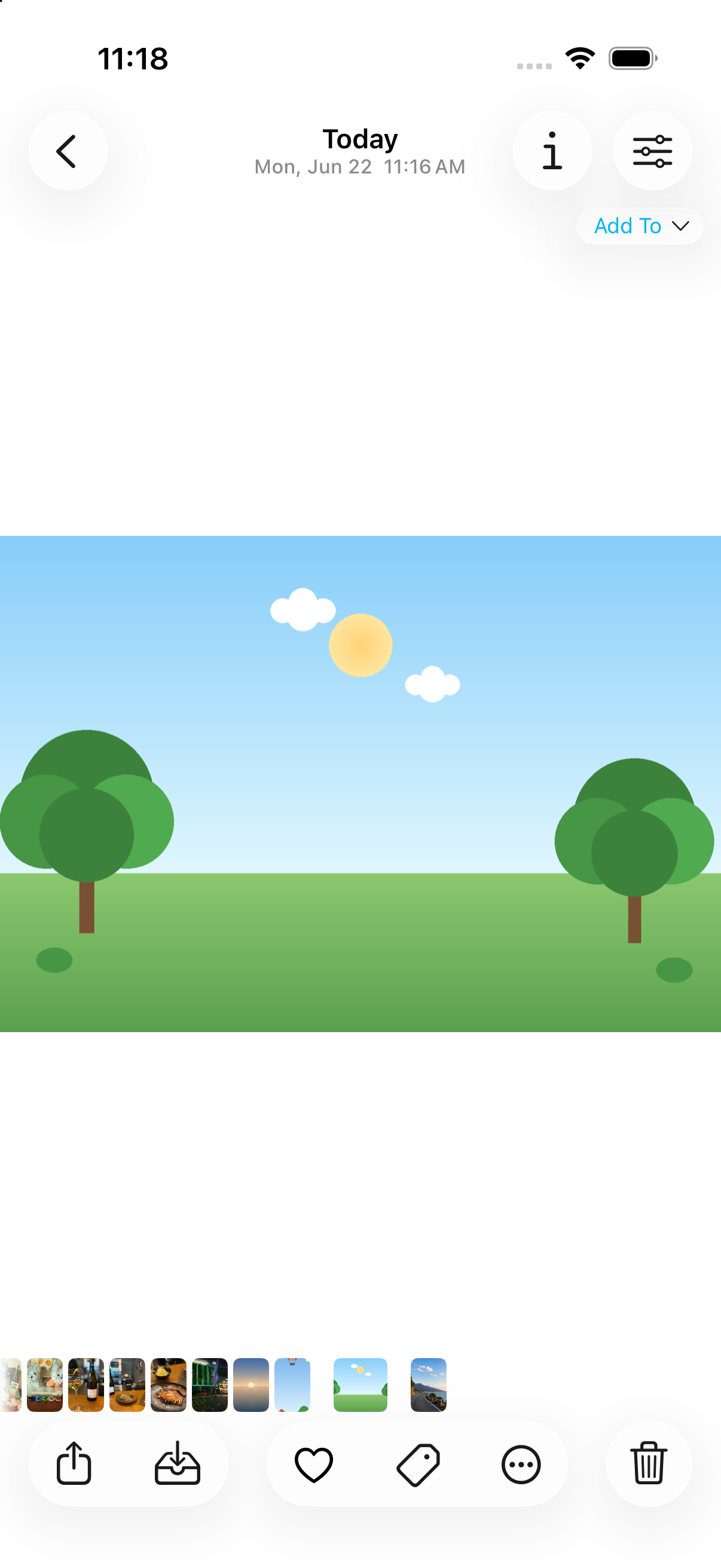

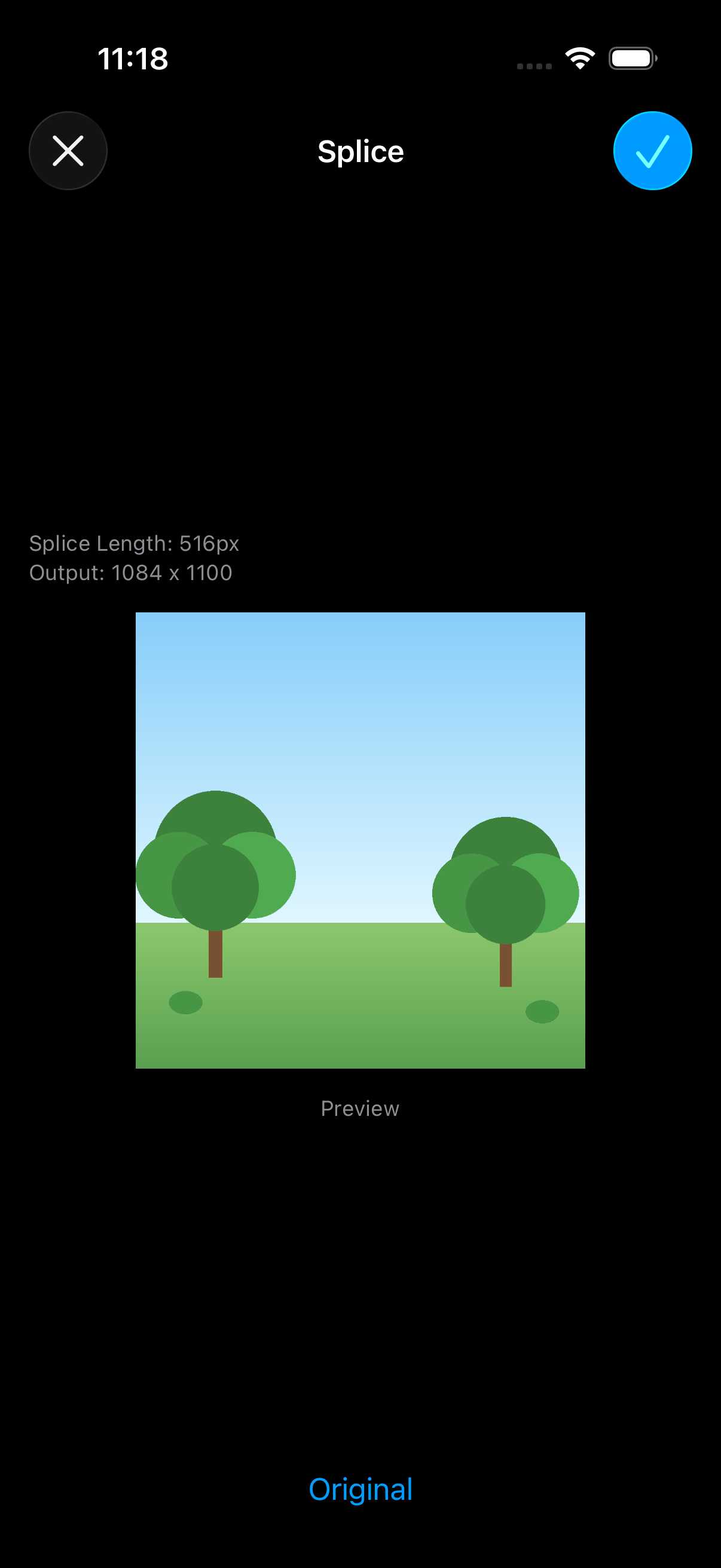
- Open a photo in the viewer.
- Tap the on the bottom toolbar.
- Tap Edit > Splice Image.
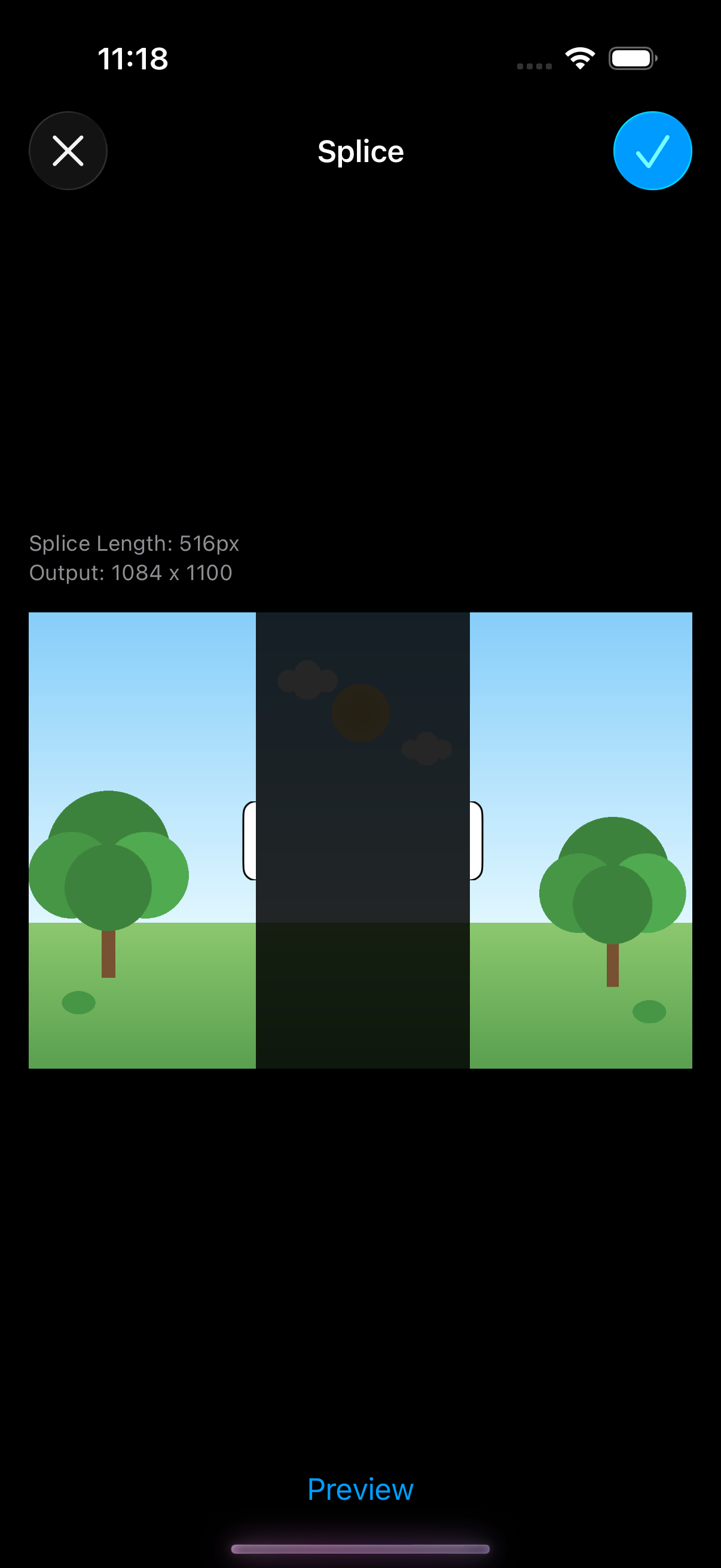
- Drag the handles to select the area to remove.
- Tap the image to switch between vertical and horizontal splice.
- Tap Preview to see the result.
- Tap Save to save the spliced image.
See also Slice Image to split an image into multiple pieces.