
Categorize into Albums
Photos that are not assigned to any album appear in the Uncategorized album. Use the steps below to add photos to albums, move them between albums, or remove them from an album.
Add to Album
Method 1 (In Thumbnails)
- Select photos.
- Tap the Add To button at the center of the bottom toolbar.
-
Choose an album type and pick an album in an album picker.
Or tap an album in a recently used album list.
Method 2 (Add To Menu in a Viewer)
Album Names option should be on in Settings > Viewer.
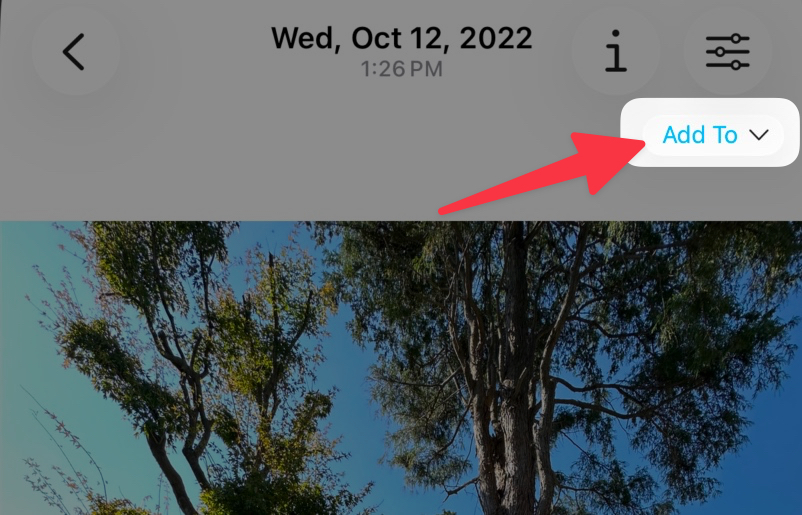
- Open a viewer.
- Tap album names (or "Add To" button) on the top right of the viewer.
-
Choose an album type and pick an album in an album picker.
Or tap an album in a recently used album list.
Method 3 (Album Bar in a Viewer)

- Open a viewer.
- Tap album names (or "Add To" button) on the top right of the viewer.
- Tap Show Album Bar.
- Tap an album on the album bar to assign a photo into the album.
Method 4 (Action Menu in a Viewer)
- Open a viewer.
- Tap the on the bottom toolbar.
- Tap Add to Album.
-
Choose an album type and pick an album in an album picker.
Or tap an album in a recently used album list.
Move to Album
Move to Album is only available in the
System Library.
It moves photos from one album to another instead of adding them to a second album.
- Open an album.
- Select photos to move.
- Tap the Add To button on the bottom toolbar.
- Tap Move to Album.
- Choose a destination album in the album picker.
Remove from Album
Removing from album is only available in the
System Library.
In the Local Library, photos can be deleted or moved to another album.
In the Local Library, photos can be deleted or moved to another album.
Method 1
- Open an album.
- Select photos to remove.
- Tap the
 delete button.
 - Tap Remove from Album.
Removed photos appear in the Uncategorized album.
Method 2
Settings > Viewer > Assigned Album Titles should be on.
- Open a viewer.
- Tap album title button on the top right of the viewer.
- Tap Remove from Album or Remove from All Albums.
In the System Library, a photo can be assigned to multiple albums.
In the Local Library, a photo can belong to only one album.