
Local Library
PRO Free: up to 1 local album. Local Folder is Pro only. System ↔ Local Library: up to 3 items at once.
The Local Library is a library managed only in HashPhotos.
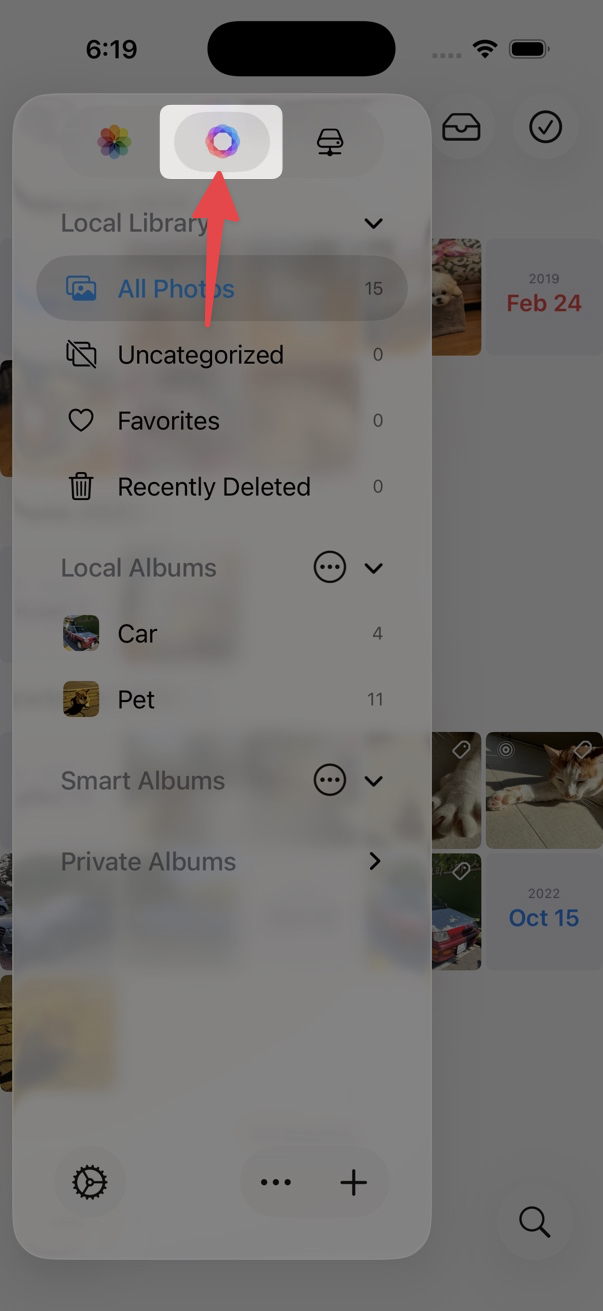
Photos in the local library are stored within HashPhotos app storage. They are not uploaded to any server or cloud. they are only stored on your device.
Albums in the Local Library function similarly to folders in a file system, unlike the album management in the iOS Photos Library. A photo can only be placed in one album at a time.
Add Photos to Local Library
From the System Library
- Tap the HashPhotos icon at the top of the sidebar to activate the Local Library.
- Tap the ... button next to the album section title and add a new album.
- Open All Photos or an album from the system library and select photos.
- Tap the Add/Move To button in the middle of the bottom toolbar and select Local Album...
- Select the desired album from the album picker.
- Only the final edited versions of photos and videos will be saved. For Live Photo with Loop, Bounce, or Long Exposure, only the final processed video is saved.
- Even if you save them back to the System Library later, the original version cannot be restored. If you need the original, please make sure to save it separately beforehand.
Using Import
You can also add photos directly to the Local Library with Import — for example from files, a folder, Wi-Fi, the clipboard, or a URL.
From Other Apps (Share Sheet)
From another app’s share sheet, choose Save to HashPhotos to save images to the Local Library. See App Extensions for details.
Private Album
- Tap the HashPhotos icon at the top of the sidebar to activate the Local Library.
- Tap the + button on the bottom toolbar.
- Tap Private Album on the menu.
- Enter the album name.
- The Private Album section will appear.