
External Library
Requires iOS 17 or later.
PRO Free: up to 1 folder (subfolders within that folder are allowed).
The External Library lets you browse photos stored outside the System Library and Local Library.
Add folders from:
- An external drive or other location available in the Files app
- Dropbox
- A WebDAV or SMB server — connect directly in HashPhotos by entering the server address, path, and account details
Photos are not copied into HashPhotos when you add a folder. HashPhotos reads them from the folder you choose.
External Library currently supports a simple photo list and viewer, plus sharing, deleting, and adding photos
to the System Library or Local Library. Other tools are not yet supported.
Add a Folder
- Open the sidebar.
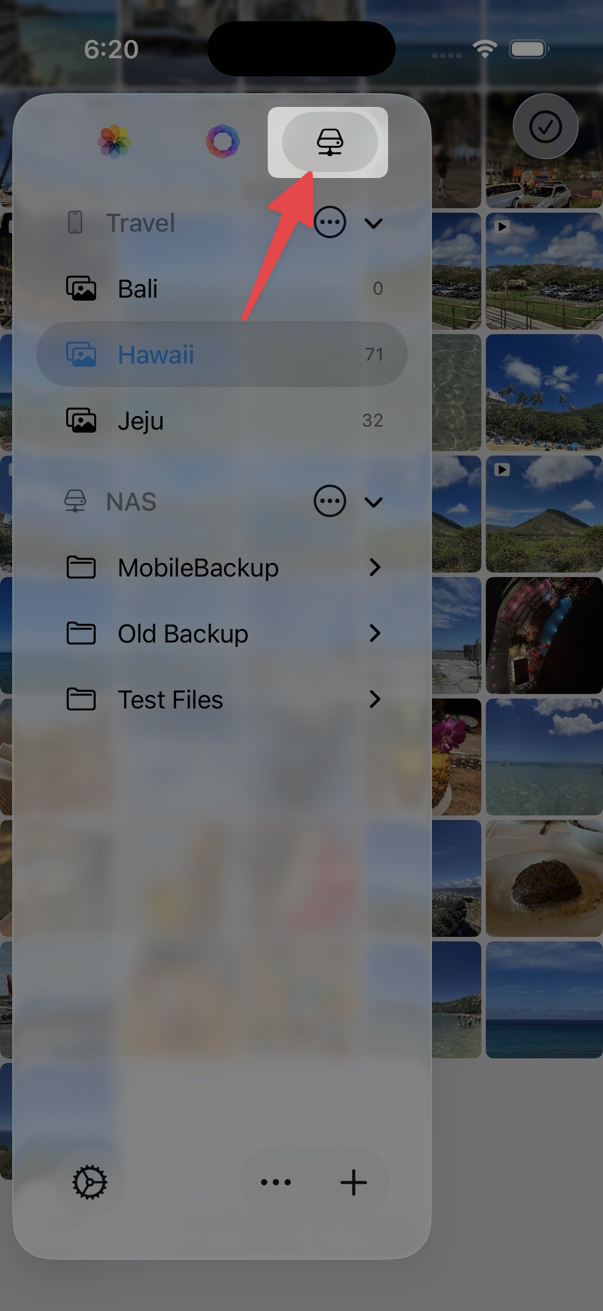
- Tap the External Library tab at the top.
- Tap the + button on the bottom toolbar.
- Choose how to add the folder:
From Files or Dropbox
- Pick a folder from the Files app — for example on an external drive — or from Dropbox.
From a WebDAV or SMB server
- Enter the server address, path, and account details in HashPhotos to connect directly.
Remove a Folder
- Open the sidebar and select the External Library tab.
- Tap the ... button next to the Folder section header.
- Tap Remove Folder.
Removing a folder from the External Library only removes it from HashPhotos. It does not delete the folder or
its files on the drive or server.
External Library Settings
Open Settings > Library > External Library to:
- Turn Use External Library on or off.
- Set the Cache Size Limit for cached thumbnails, photos, and videos.
- Reset External Library to remove all sources and cached data.
Connect Dropbox under Connected Accounts when needed.