
Tray
PRO Free: up to 10 items.
While reviewing your photos, put the ones you want to work on later in the tray. Then you can share, delete, or run other actions on all tray photos at once — without squinting at small thumbnails to make a selection.
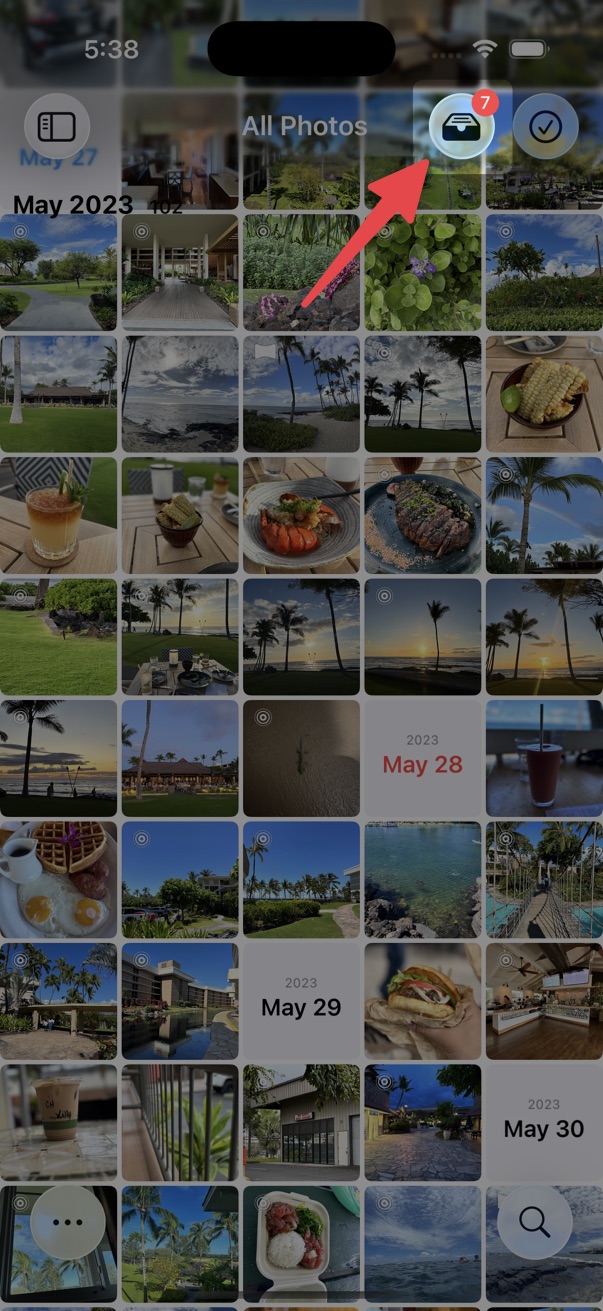
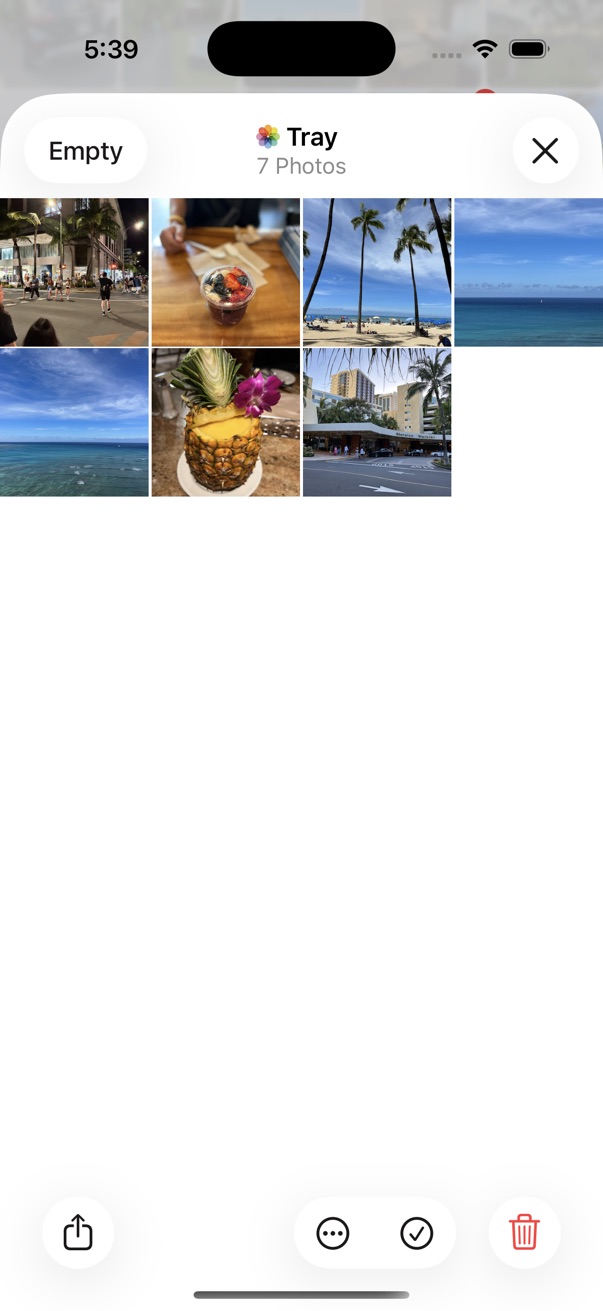
Add to Tray
Method 1
- Select the photos you want to add to the tray.
-
Tap the
 Add to Tray button on the bottom toolbar.
Method 2
- Open a photo in the viewer.
-
Tap the
Add to Tray button on the bottom toolbar.
Remove from Tray
Method 1
- Open the tray.
- Touch and hold a photo, then tap Remove from Tray.
Method 2
- Open a photo in the viewer.
-
Tap the
 Remove from Tray button.
Empty Tray
Method 1
- Open the tray and tap Empty.
Method 2
- Touch and hold the tray button, then tap Empty Tray.
Select Photos in the Tray
Method 1
- Open the tray.
- Tap the select button.
Method 2
- Touch and hold the select mode button.
- Tap Select Items in Tray.
Show in Album or All Photos
Jump to a tray photo in the thumbnails screen to see it in context:
- Open the tray.
- Touch and hold the photo.
- Tap Show in Album or Show in All Photos on the menu.
