
Add Text
PRO Free: presets not available; one text overlay at a time.
Add text overlays to a photo. Options are grouped into Text, Background, and Alignment & Spacing.
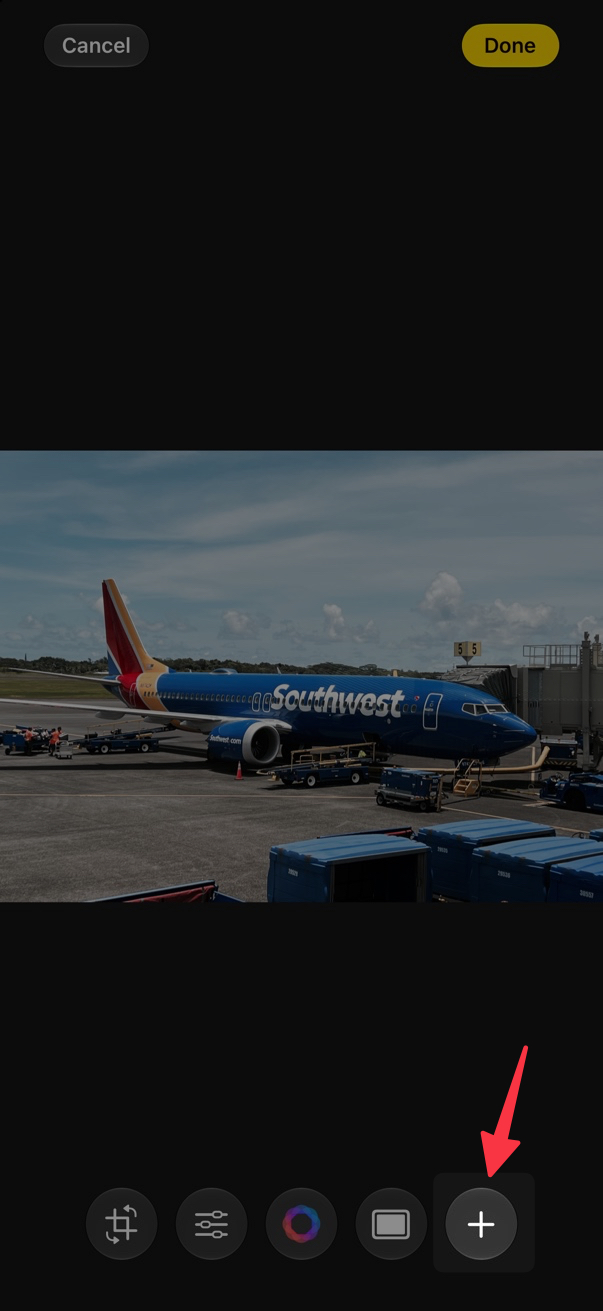
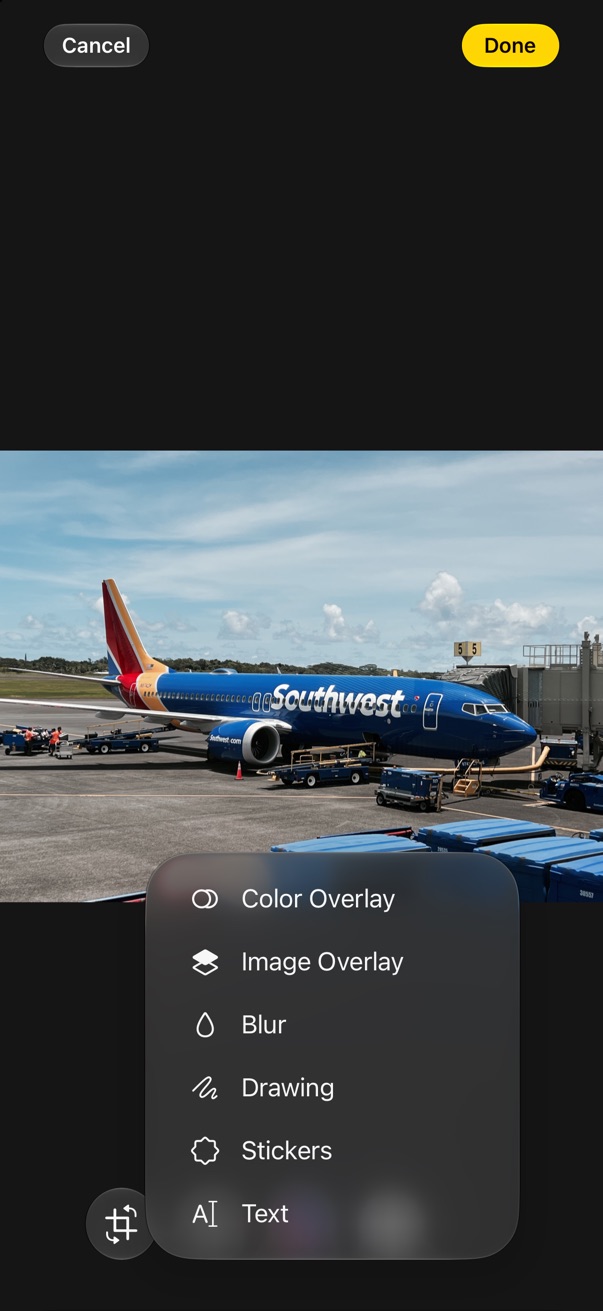
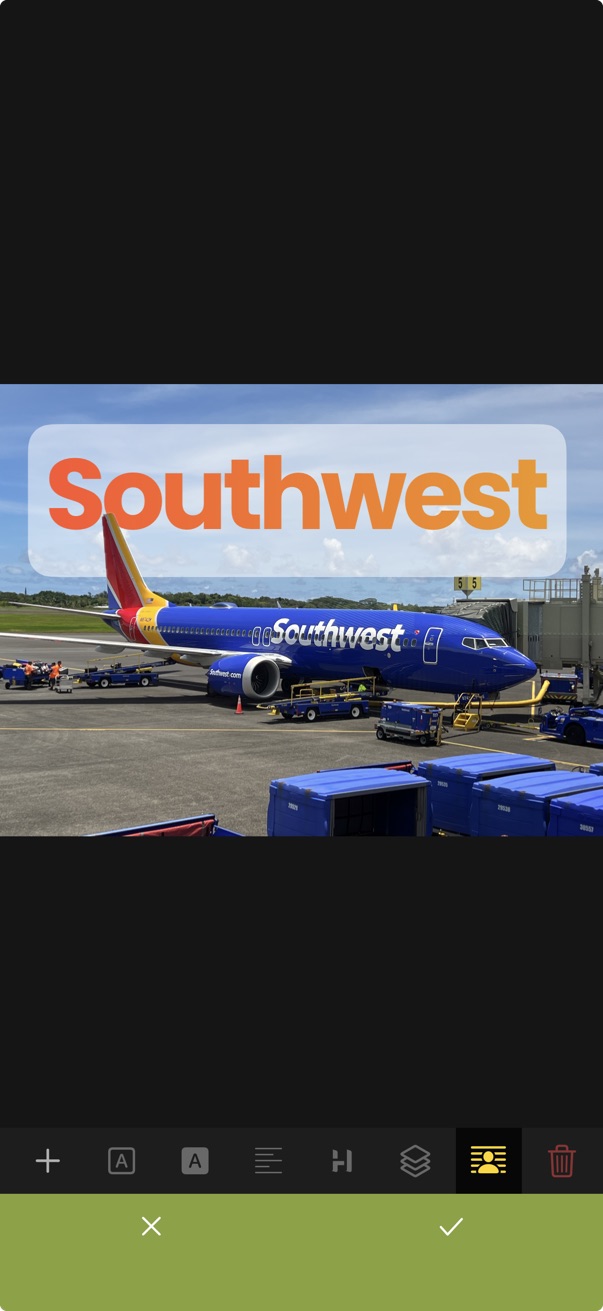
- Open the editor.
- Tap the add (+) button on the bottom toolbar.
- Choose Text.
- Enter your text, adjust style in the panels below, then tap the checkmark to apply.
Text options
Options are organized into three panels:
- Text
- Font, color, and related text styling. You can also fill text with a gradient (17 built-in presets) and apply a shadow.
- Background
- Add a background behind the text with its own color, opacity, padding, and corner radius. Fill the background with a gradient, or apply a shadow to the background.
- Alignment & Spacing
- Align the text and adjust spacing.
Order and Subject
- Use the Order menu to bring a text to the front or send it to the back when multiple overlays overlap.
- Use the Subject tool to place text behind the main subject of the photo.
Insert photo info
While editing text, tap the + button on the keyboard to insert photo info such as title, caption, filename, date, camera, lens, ISO, aperture, and shutter speed.
Copy style
Touch and hold a text overlay to copy its style, then paste that style onto another text.
Save as preset
To reuse the same wording and style later, select the text overlay and tap the save button at the right end of the text toolbar to save it as a preset.
After it is saved, tap the + button on the text toolbar to add the preset with the text and style already applied.