
Crop/Rotate/Flip
Crop a photo in the editor. Ratio, angle, skew, flip, and rotate are all available on the Crop screen.
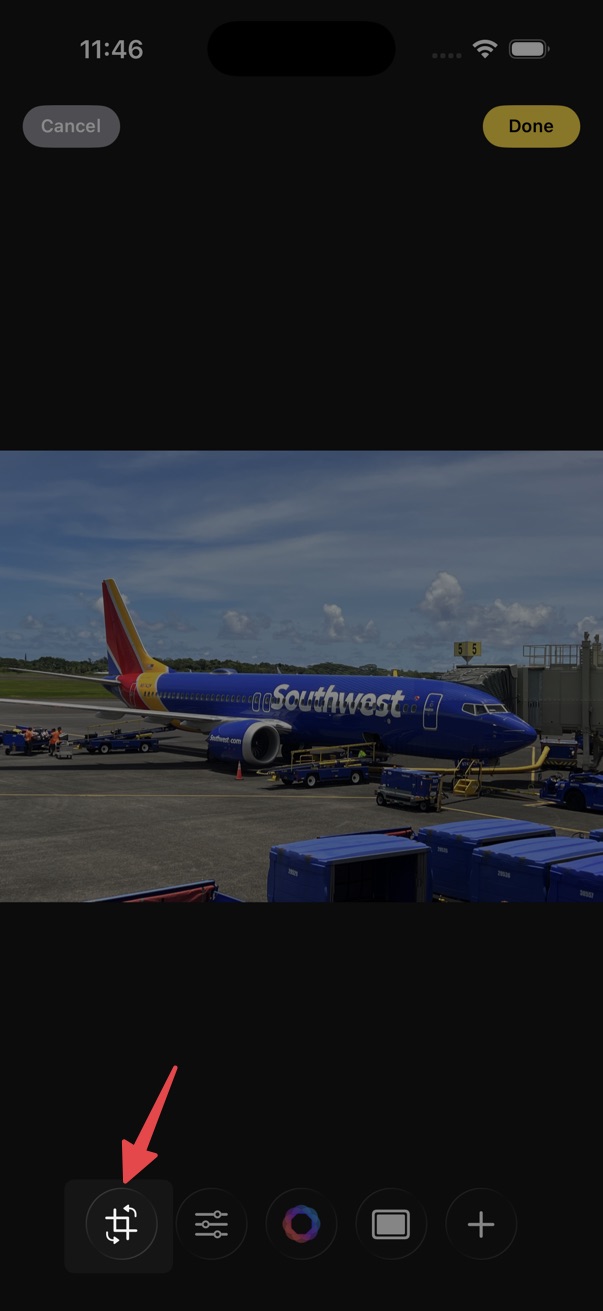
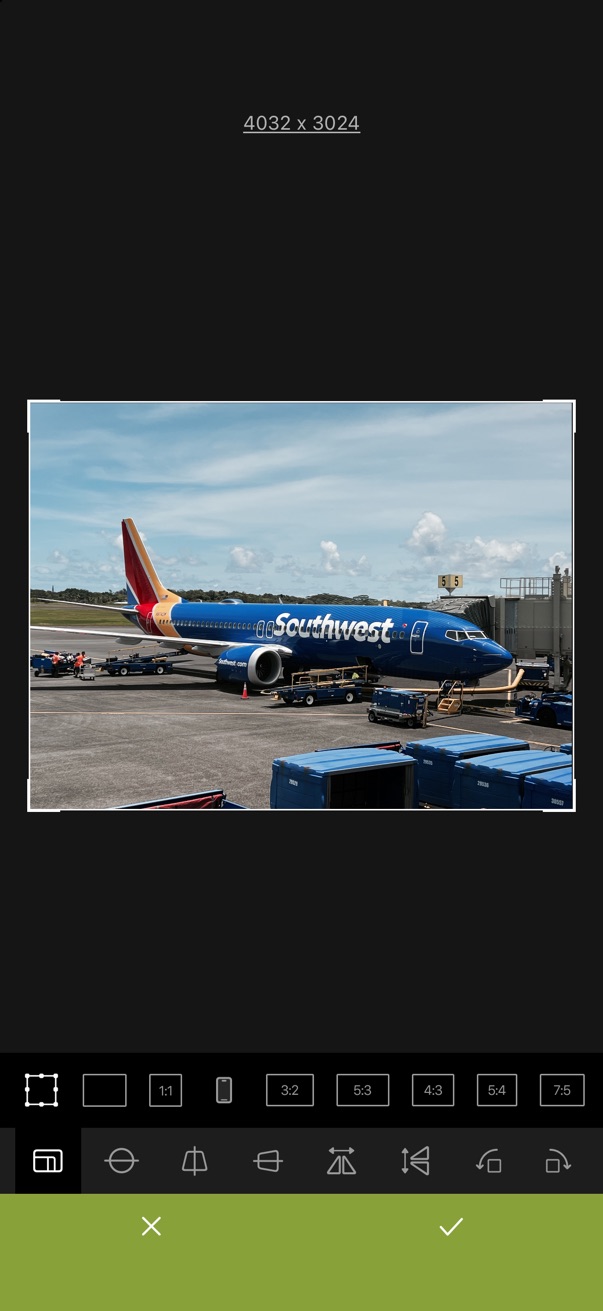
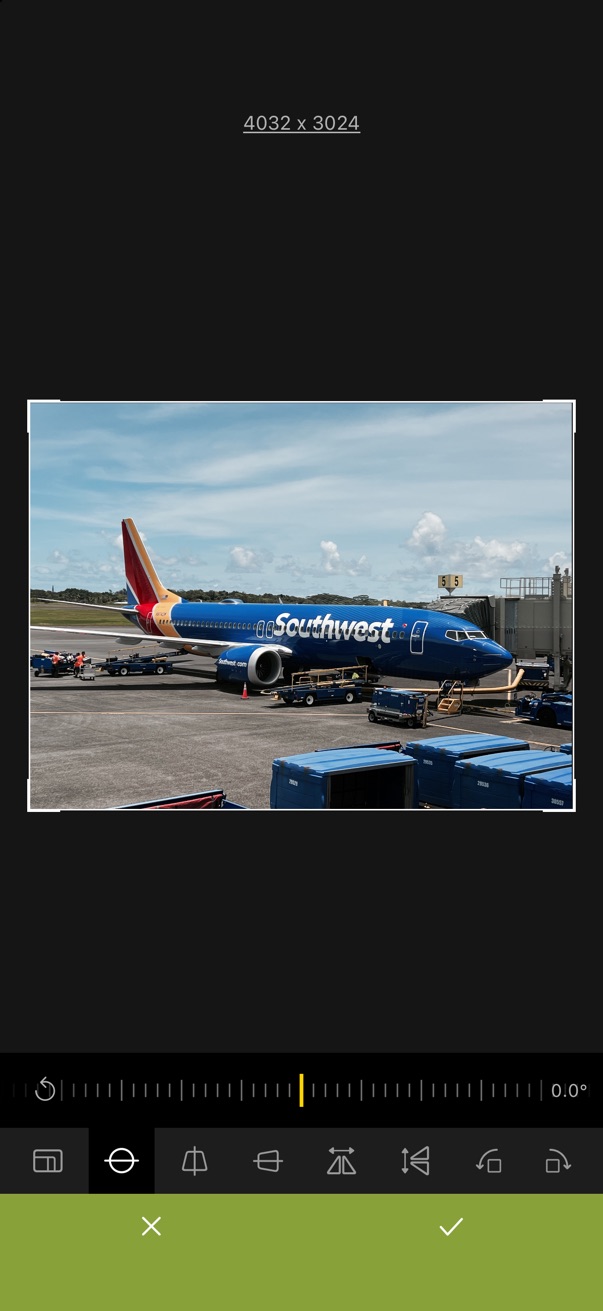
- Open the editor.
- Tap the crop button on the bottom toolbar.
- Adjust the crop area and options, then tap the checkmark to apply.
Tap the crop result dimensions at the top of the screen to enter width and height manually and adjust the crop area.
On the Crop screen
- Ratio — lock the crop area to an aspect ratio.
- Angle — straighten the photo.
- Skew H / Skew V — correct horizontal or vertical perspective.
- Flip H / Flip V — flip the photo horizontally or vertically.
- Rotate Left / Rotate Right — rotate 90° at a time.