
Thumbnails
The thumbnails screen shows your photos and videos in an album. You can browse the list in various layout styles and customize how photos are sorted, grouped, and displayed.
Open in Viewer
Tap a photo or video to open it in the viewer.
Select Photos
See Select Photos for how to select one or more photos for organizing, editing, and other actions.
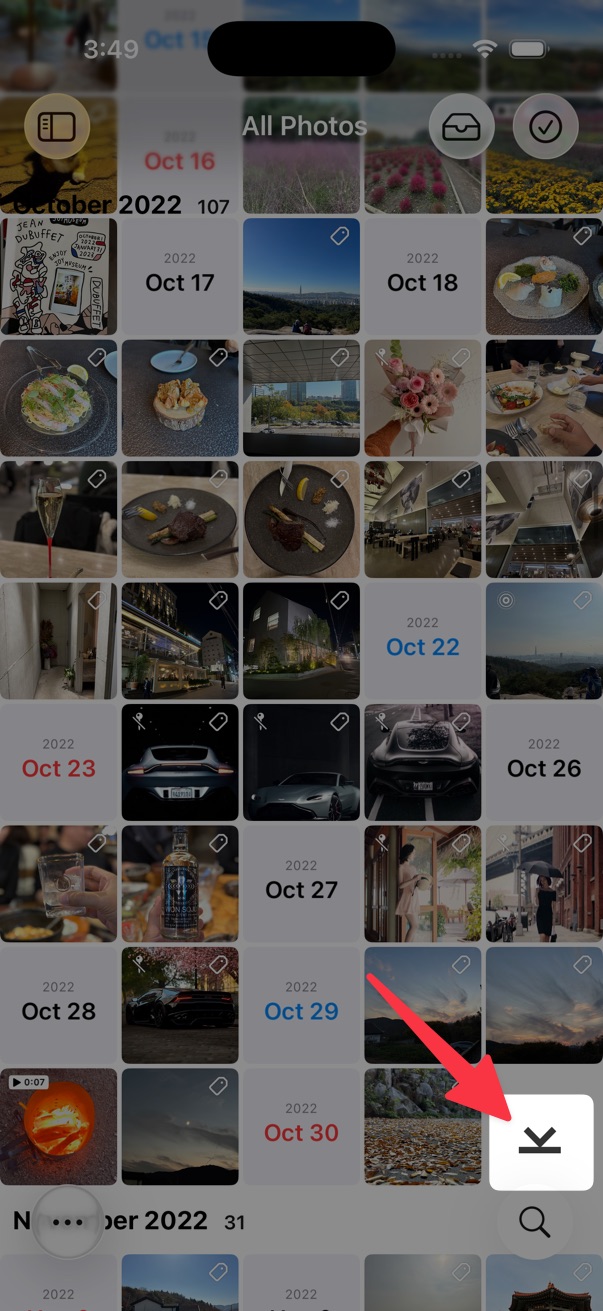
Scroll to Top or Bottom
While scrolling up or down, a button appears on the bottom right of the screen. Tap it to jump to the top or bottom of the list.
You can also scroll to the top by tapping the status bar — the standard iOS behavior.
Change Video Thumbnail
- Open the video in the viewer.
- Pause at the frame you want to use as the thumbnail.
- On the toolbar, choose … > Extras > Set Current Frame as Thumbnail.
This setting applies only in HashPhotos and does not affect the default Photos app.
Customization
Customize the thumbnails screen — layout, size, sort order, grouping, badges, and more:
Default thumbnail options are in Settings > Thumbnail.
Album Custom Options
To apply customization to a specific album only, see Album Custom Options.