
Slideshow
Play a slideshow from an album, or from photos and videos you select.
Method 1
- Tap the on the bottom left of the thumbnails screen.
- Tap Slideshow
Method 2
- Select photos to view in slideshow.
- Tap the on the bottom toolbar.
- Tap Slideshow.
Method 3
- Open the sidebar.
- Touch and hold the album or folder.
- Tap Slideshow.
If you want to stop slideshow, tap the screen and tap
Close button.
Options
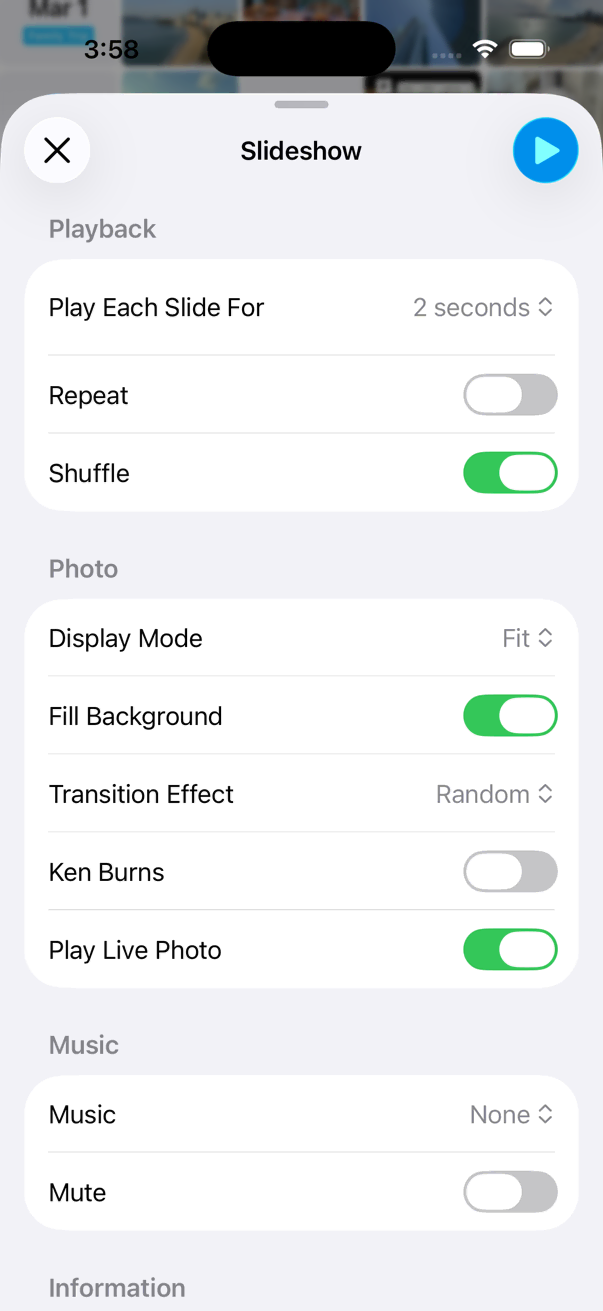
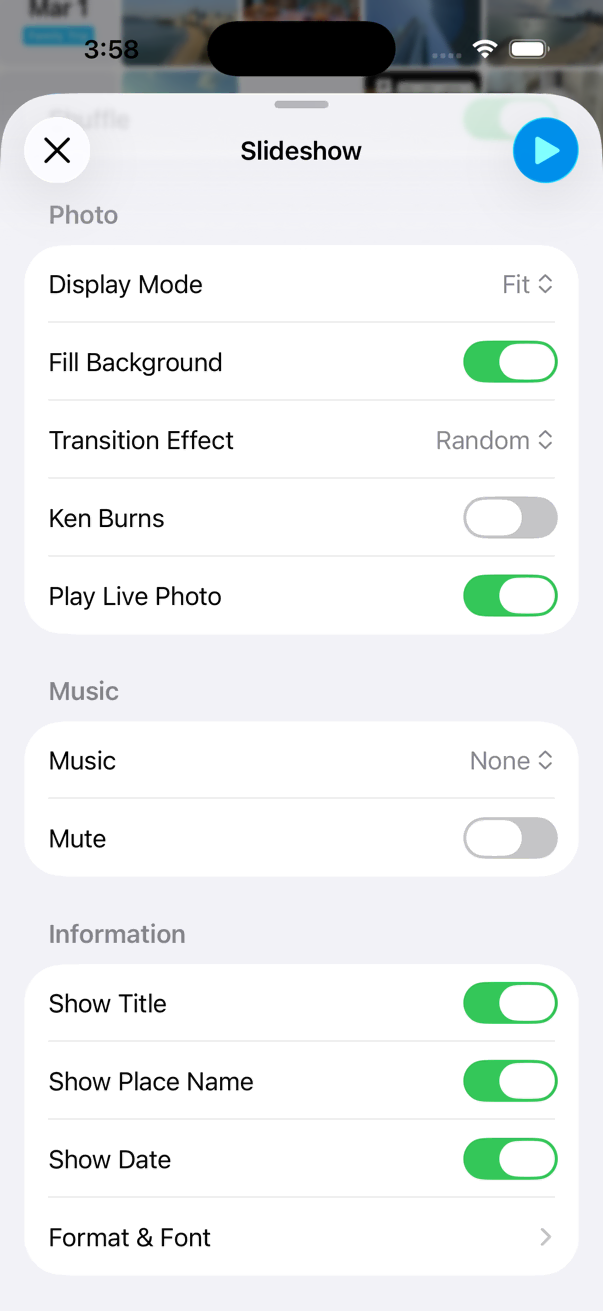
HashPhotos offers a variety of options so users can customize the slideshow to their preferences.
Supported Transition Effects
Dissolve, Push, Zoom Fade, Parallax Slide, Fade Through Black, Blur Crossfade, Flip 3D, Iris, Page Flip, Door Open and RandomKen Burns effect
Choose from multiple Ken Burns effect variations for photos.
Text and labels
- Show Title, Date, and Place name (System Library only for place names)
- Adjust text size and font for title, date, and place labels
Display
- Choose Fit or Fill display mode
- In Fit mode, add a background fill behind photos
- Play animated GIF images during the slideshow
- Play Live Photos as motion or still images
Timing & Music
- Set the hold time for each slide
- Choose longer delay options (5m, 10m, 15m, …) for long-running slideshows
- Select a music playlist to play during the slideshow