
Search by Keywords
PRO Free: up to 3 filters at a time. Regular expressions are Pro only.
- Tap the search button on the bottom right of the screen.
- Tap keyword button (tag icon)
- Enter keywords or built-in filters(start with #, @, <, >, =) to search.
Tips
- Pressing the space bar twice while typing a keyword will autocomplete to the first keyword in the keyword list.
-
For text search filters, you can use regular expression expressions. PRO#title:/^prefix/i
Title starts with "prefix". Case insensitive.
#camera:/iphone/i
Camera model contains "iPhone". Case insensitive.
For more information about supported regular expressions, see here.
Options
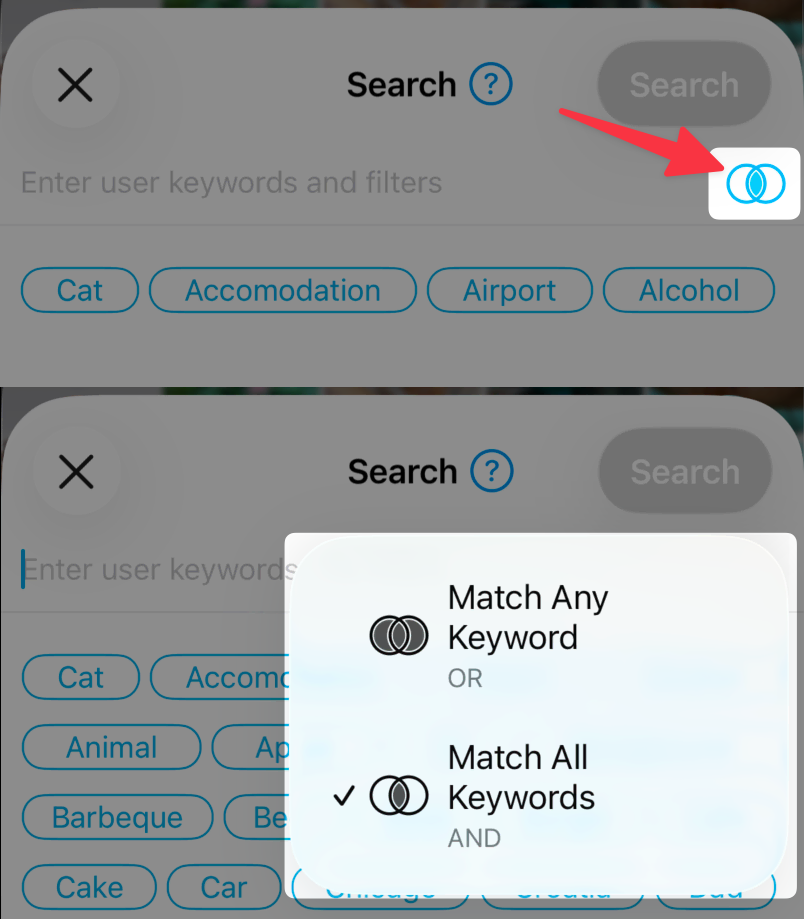
- Match Any Keyword (OR)
- Filter photos with any of the entered keywords.
- Match All Keywords (AND)
-
Filter photos with all of the entered keywords.
- ! (Not Operator)
-
Entering ! in front of the keyword will do the opposite
of the keyword.
For example, this filter searches for photos without the keyword Cat that are not in GIF format.

Edit Filters
- Double-tap a filter that accepts a value (e.g.
#title:TEXT,#memo:TEXT) to edit it. - Long-press a filter for options to delete, toggle ! (NOT), or edit the value.
- Tap a filter, then type on the keyboard to change its value.
Search History
Tap the search history button in the search popup to reuse recent filters. Choose Clear on the history menu to remove saved entries.
Lock Filter
Turn on Lock Filter to pause thumbnail refresh while you browse filtered results. Useful when you want to review matches without the list updating.
